FAQs
Payment for parking is required when you leave the parking lot or deck. See here for parking rates.
Yes. The curbside drop off is permitted, but waiting or parking is prohibited.
No. Please meet your arriving party in the terminal baggage claim area or terminal curbside. Airlines will accommodate requests by individuals meeting passengers with special needs, elderly, and unaccompanied minors. Please check with the airlines directly.
Disabled Parking spaces are available in the Short-term Parking Lot and in the Parking Deck on levels 2, 3, and 4.
XNA offers multiple parking options and affordable pricing based on proximity to the terminal. For information about ADA Accessibility, Wheelchair Services, Curbside, Electric Vehicle Charging and Security click here.
Reserve your spot for EXTRA-LARGE spaces conveniently located near the elevators in the designated PREMIUM RESERVED area.
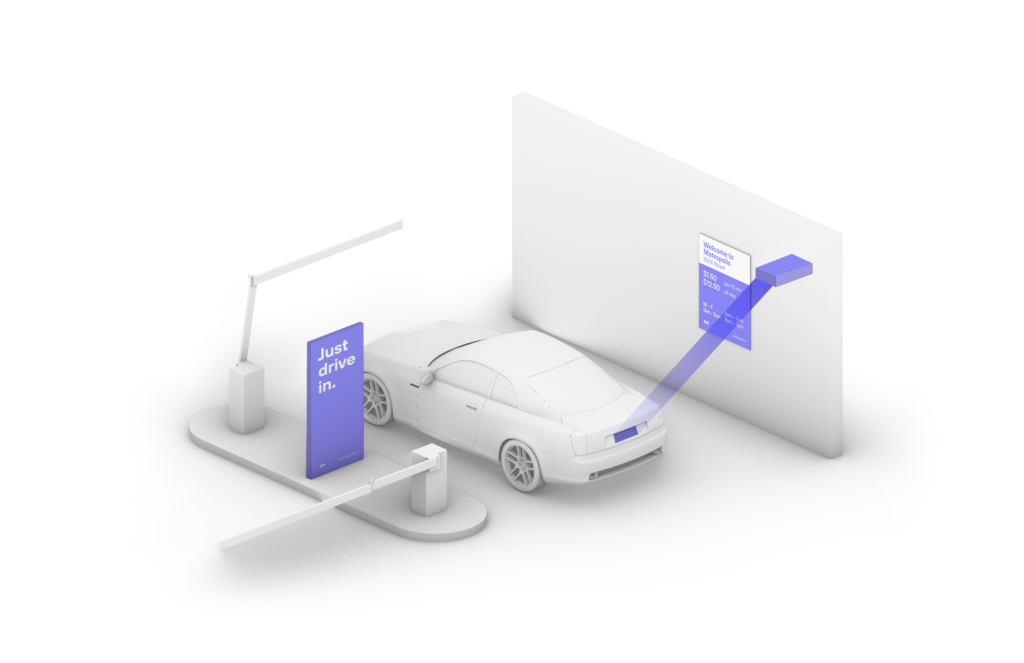
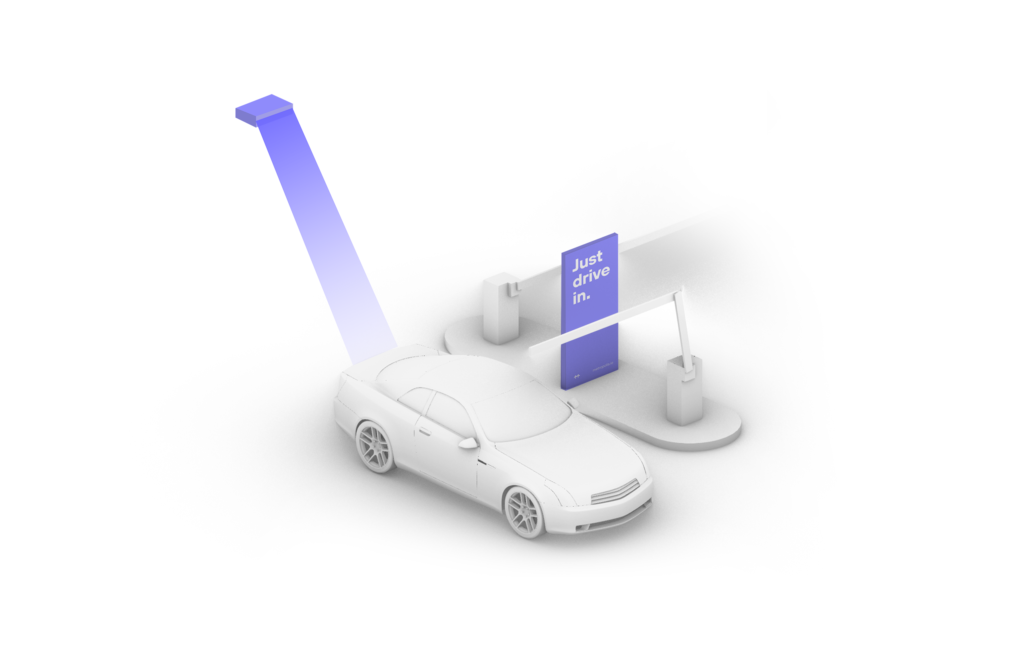
Metropolis is an innovative way to make parking easier. The technology recognizes vehicles automatically so guests simply drive in and drive out.
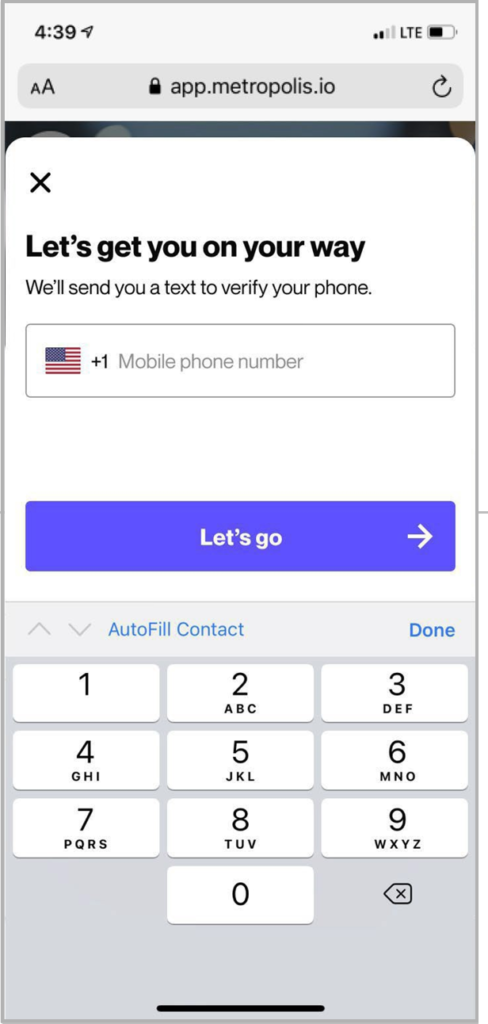
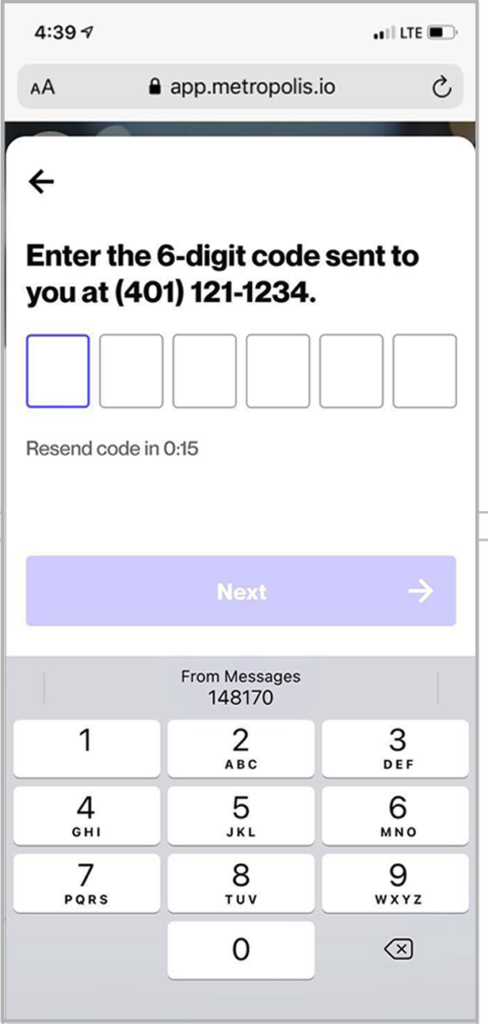
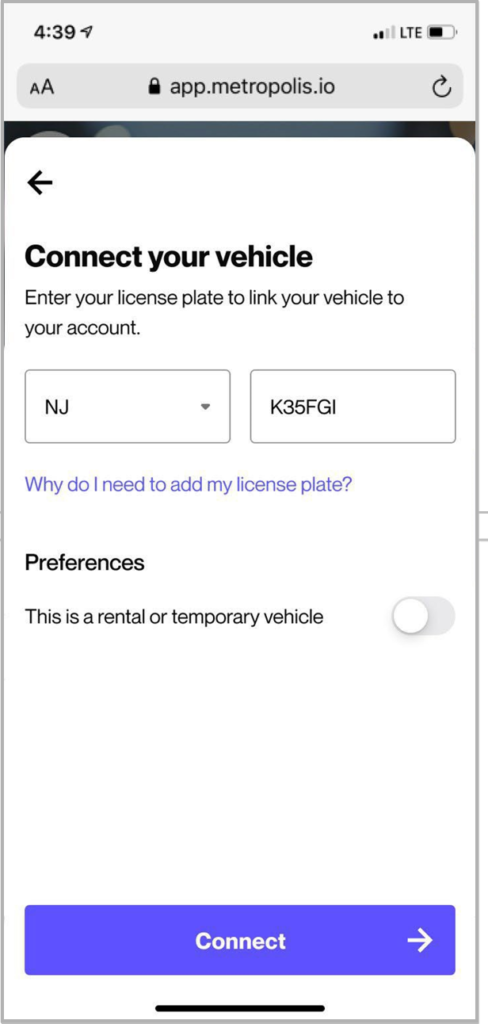
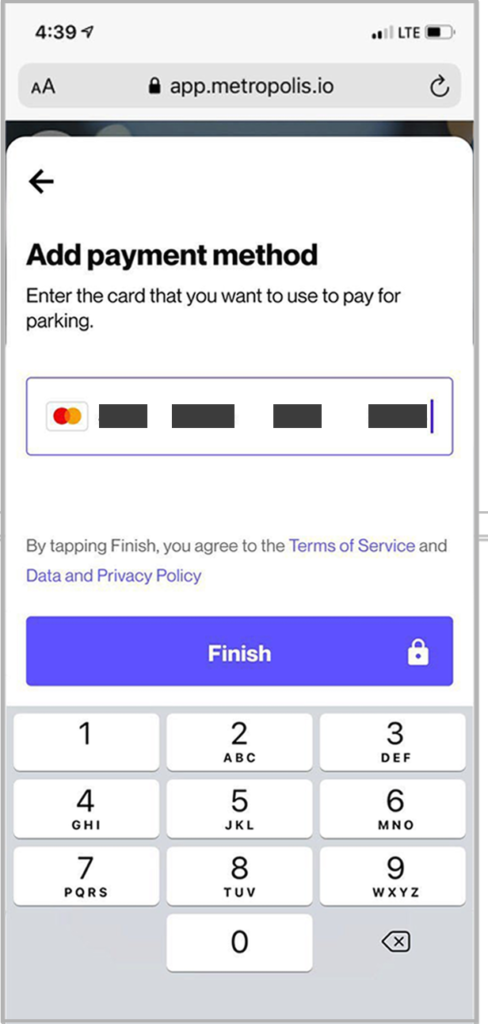
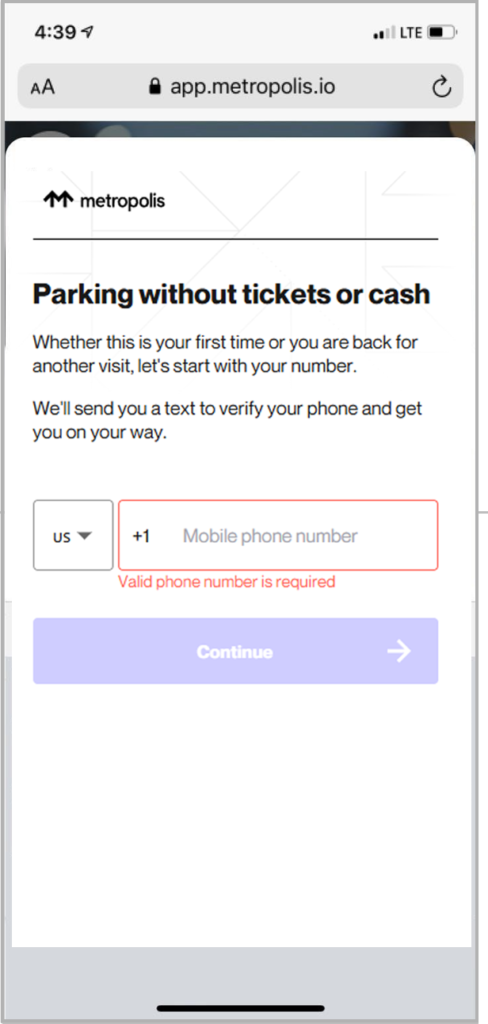
Sign up is a breeze.
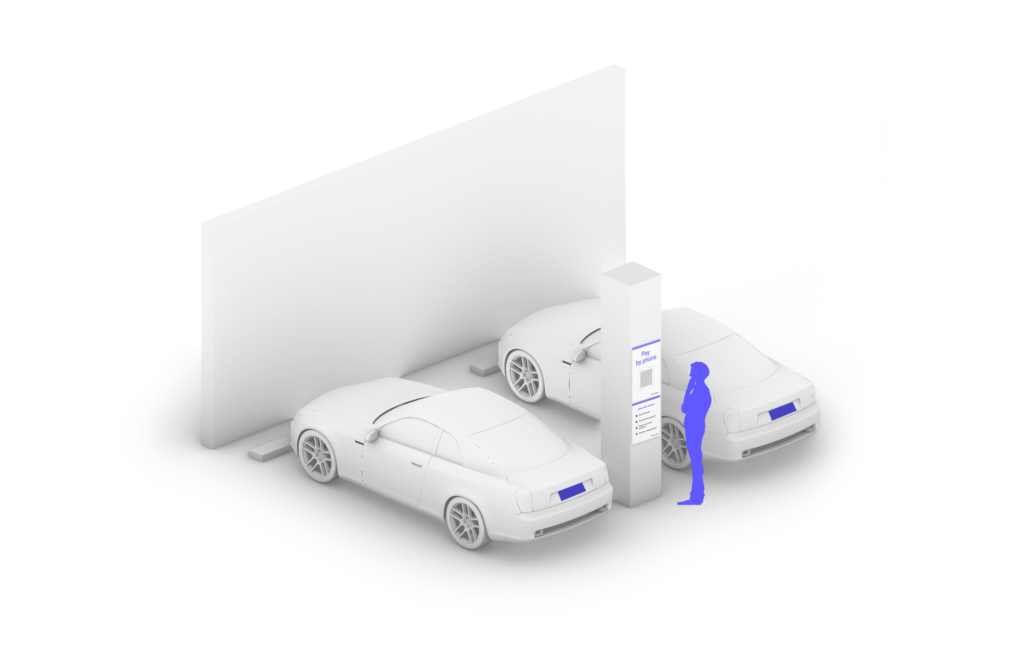
Scan one of the QR codes posted at the parking facility to start parking. No need to download an app.
Enjoy touch-free payment
Just add your license plate number and credit card for contactless payment. Next time you visit a Metropolis facility, just drive in and drive out.
Contactless time stamping
We’ll send you a text message when you enter and exit the facility. Your parking session is automatically charged to your credit card after exiting.
Just finished a parking visit at a Metropolis location?
At the end of your visit, Metropolis will automatically send your parking receipt through a text message or notification. To access the receipt, either tap on the link in the message or notification or log in to the Metropolis web or iOS app and open your recent visits.
Looking to view a receipt from your visit history?
You can view your receipts any time by logging in to the Metropolis web or iOS app and opening your recent visits.
Just drive in. You’ll receive a text message when you enter.